How to Use the AR Skip Preview
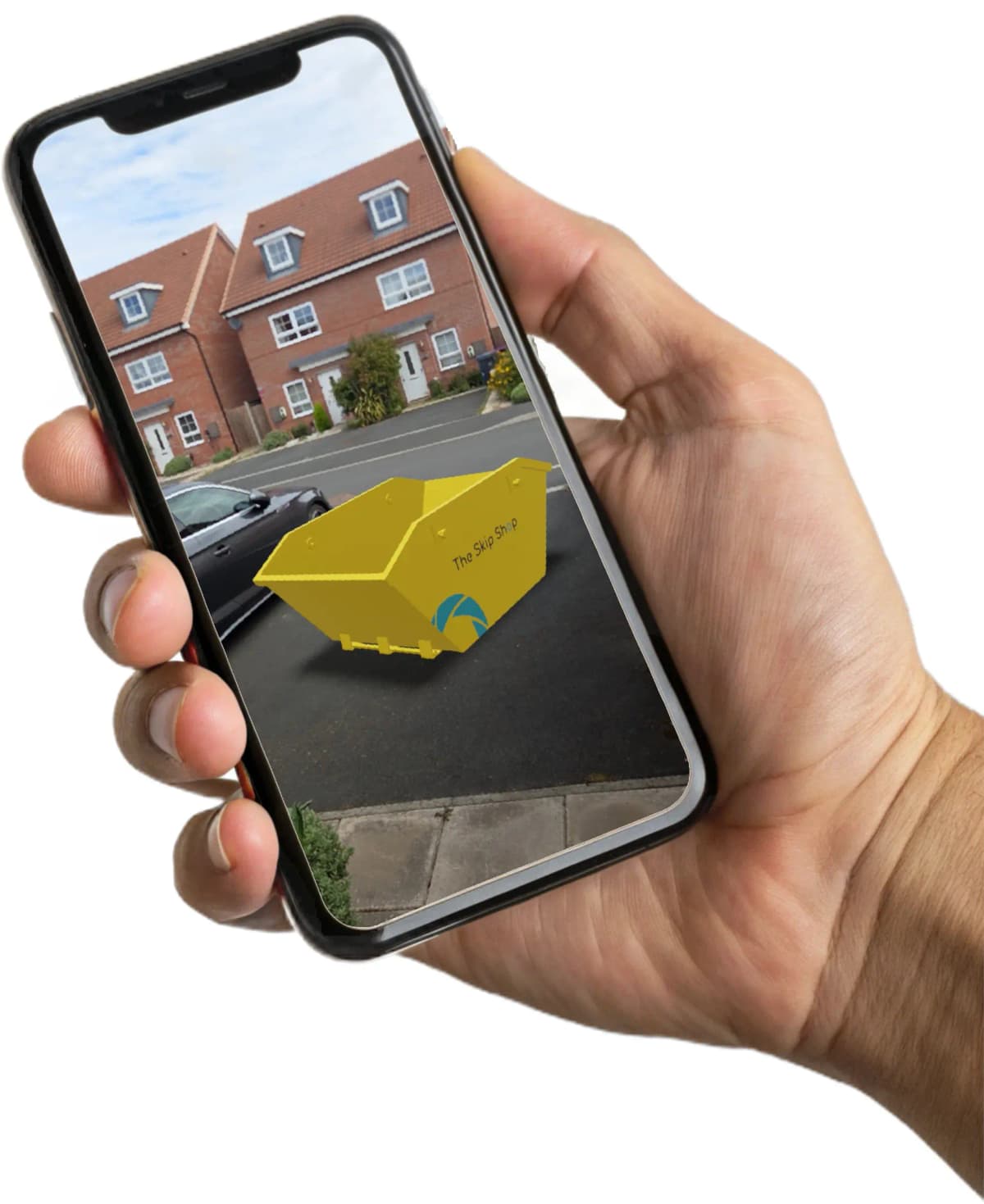
The augmented reality skip preview lets you see any skip size in your own space using your phone camera. Follow these tips for the best results on iPhone, Android, or desktop.
What is the augmented reality skip preview?
Every skip on our site has a 3D model you can rotate and inspect in your browser.
On compatible phones, tap "View in Your Space" to place a virtual skip in your driveway or garden using your camera, so you can see exactly how it fits before you book.
The size shown is approximate and for guidance only. Exact dimensions vary slightly by supplier.
Tips for the best AR results
Go to the actual spot
Head outside to where your skip would be placed: your driveway, front garden, or roadside. AR works by detecting the ground in front of you. Being at ground level gives you the most accurate sense of size.
Stay in good light
Bright natural daylight works best. Your device uses its camera to map the ground plane, and low light or heavy shadows can make it harder to do that accurately.
Point at the ground first
When you tap "View in Your Space", point your camera at the ground for a second or two and move it slowly. Your device needs to detect a flat surface before it can place the model. Once it has, you'll see a prompt to tap and place the skip.
Step back after placing
Once the skip is placed, take a few steps back to see it in full. Walk around it to judge the size from different angles. This is especially useful for checking how much of your driveway it would take up.
Common issues to avoid
Viewing through a window
Glass distorts your camera's depth perception, particularly on iPhone. Even looking down from a first-floor window can confuse AR. Always view from outside at ground level.
Dark or mixed-light environments
Indoor lighting, at night, or in patchy shade makes it difficult for your device to detect a flat surface reliably.
Moving too fast
Give your device a moment to scan before placing. Panning the camera too quickly can prevent the ground plane from locking in.
Which devices support the AR preview?
iPhone & iPad
Uses Apple AR Quick Look. Requires iOS 12 or later. Works best on iPhone 12 and newer.
Android
Uses Google Scene Viewer. Requires ARCore support. Works on most mid-range and flagship phones from 2019 onwards.
Desktop & older devices
You'll see the 3D model and can rotate it freely, but the AR placement feature won't be available.
Ready to see the skip in your space?
Browse skip sizes and try the AR preview before you book.
Browse skip sizes